Toolbar
默认的Toolbar
style:
<style name="AppTheme" parent="Theme.AppCompat.Light.NoActionBar">
</style>
layout:
<LinearLayout xmlns:android="http://schemas.android.com/apk/res/android"
              xmlns:app="http://schemas.android.com/apk/res-auto"
    android:layout_height="match_parent"
    android:layout_width="match_parent"
    android:orientation="vertical">

    <android.support.v7.widget.Toolbar
        android:id="@+id/toolbar"
        android:layout_width="match_parent"
        android:layout_height="?attr/actionBarSize" />

</LinearLayout>
修改Toolbar背景颜色
方法一:修改style中的theme
<style name="AppTheme" parent="Theme.AppCompat.Light.NoActionBar">
     <!-- toolbar(actionbar)颜色 -->
     <item name="colorPrimary">#2196F3</item>
</style>
方法二:修改布局文件
android:background="?attr/colorPrimary"
修改Toolbar文字颜色
方法一:修改style中的theme
<!--toolbar标题文字颜色-->
<item name="android:textColorPrimary">@android:color/white</item>
方法二:修改布局文件
app:titleTextColor="@android:color/holo_blue_light"
修改Toolbar标题文字大小
需要配合使用:
<!-- toolbar标题样式 -->
<style name="ToolbarTitle" parent="@style/TextAppearance.Widget.AppCompat.Toolbar.Title">
    <item name="android:textSize">14sp</item>
</style>

app:titleTextAppearance="@style/ToolbarTitle"
各个位置属性介绍

- colorPrimaryDark
- 状态栏背景色。
- 在 style 的属性中设置。
- 5.0以上机型可显示
- textColorPrimary
- App bar 上的标题与更多菜单中的文字颜色。
- 在 style 的属性中设置。
- App bar 的背景色
- Actionbar 的背景色设定在 style 中的 colorPrimary。
- Toolbar 的背景色在layout文件中设置background属性。
- colorAccent
- 各控制元件(如:check box、switch 或是 radoi) 被勾选 (checked) 或是选定 (selected) 的颜色。
- 在 style 的属性中设置。
- colorControlNormal
- 各控制元件的预设颜色。
- 在 style 的属性中设置
- windowBackground
- App 的背景色。
- 在 style 的属性中设置
- navigationBarColor
- 导航栏的背景色
- 在 style 的属性中设置
控件
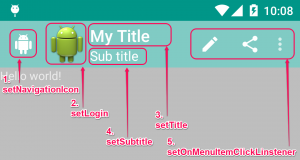
- setNavigationIcon
即设定 up button 的图标,因为 Material 的介面,在 Toolbar这里的 up button样式也就有別于过去的 ActionBar 哦。 - setLogo
APP 的图标。 - setTitle
主标题。 - setSubtitle
副标题。 - setOnMenuItemClickListener
设定菜单各按鈕的动作。
DrawerLayout
1) 在DrawerLayout中,第一个子View必须是显示内容的view,并且设置它的layout_width和layout_height属性是match_parent.
2) 第二个view是抽屉view,并且设置属性layout_gravity="left|right",表示是从左边滑出还是右边滑出。设置它的layout_height="match_parent"
<android.support.v4.widget.DrawerLayout xmlns:android="http://schemas.android.com/apk/res/android"
    xmlns:tools="http://schemas.android.com/tools"
    android:id="@+id/drawerlayout"
    android:layout_width="match_parent"
    android:layout_height="match_parent"
    tools:context=".MainActivity" >

    <TextView
        android:id="@+id/textview"
        android:layout_width="match_parent"
        android:layout_height="match_parent"
        android:gravity="center"
        android:text="content" />

    <ListView
        android:id="@+id/listview"
        android:layout_width="80dp"
        android:layout_height="match_parent"
        android:layout_gravity="left"
        android:background="#FFB5C5" />

</android.support.v4.widget.DrawerLayout>